
Multiviewer View
In the Multviewer view, you can create and manage multiviewers.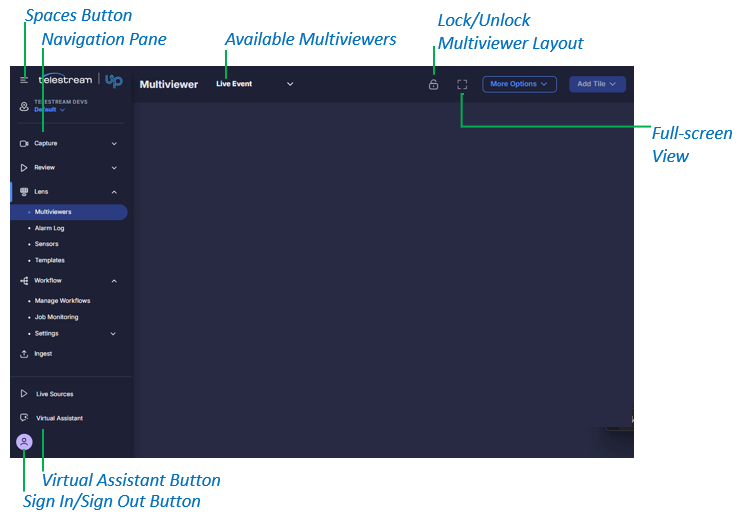
- Spaces Button: Expand the list of available spaces.
- Navigation Pane: Menu of buttons for opening available UP applications.
- Available Multiviewers: A list of each multiviewer that you can access.
- Lock/Unlock Multiviewer Layout: Lock or unlock a multiviewer layout.
- Full-screen View: View a multiviewer in full-screen mode.
- Virtual Assistant Button: Open the Virtual Assistant pane.
- Log In/Log Out Button: Log in to UP or log out.
Search Icon
In several panes, you can click the Search icon to filter the displayed list.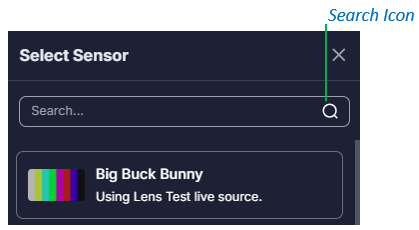
Edit Icon
On several tiles and widgets, you can click the Edit icon to configure the tile or widget.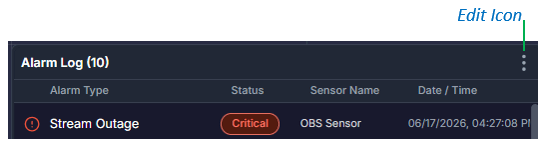
Save Icon
On the Multviewer screen, you click the Save icon to save changes to the multiviewer.
Alarm Log View
In the Alarm Log view, you can view a list of all active and recent system alerts across your monitored sources.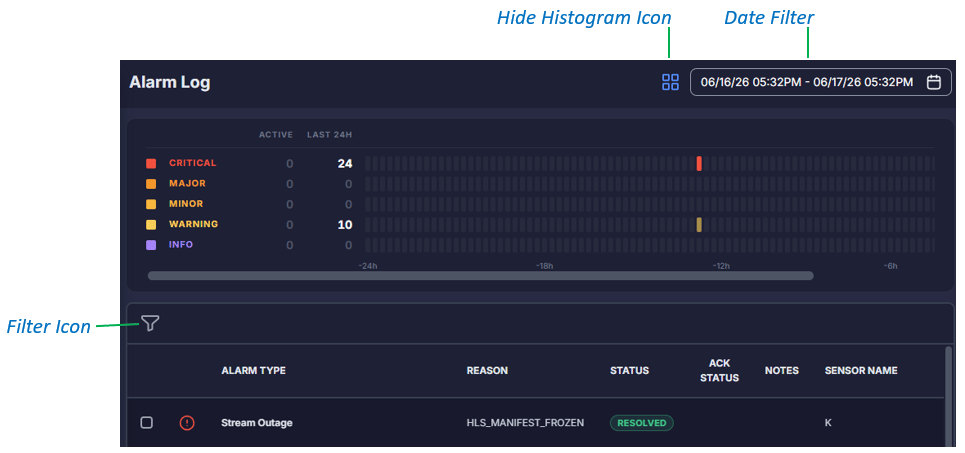
- Hide Histogram Icon: Show or hide a histogram of the alarm states and the total number of alarms that are in those states.
- Date Filter: Filter the Alarm Log by date.
- Filter Icon: Filter the Alarm Log by sensor name, alarm type, alarm severity, alarm status, and/or acknowledgment status.
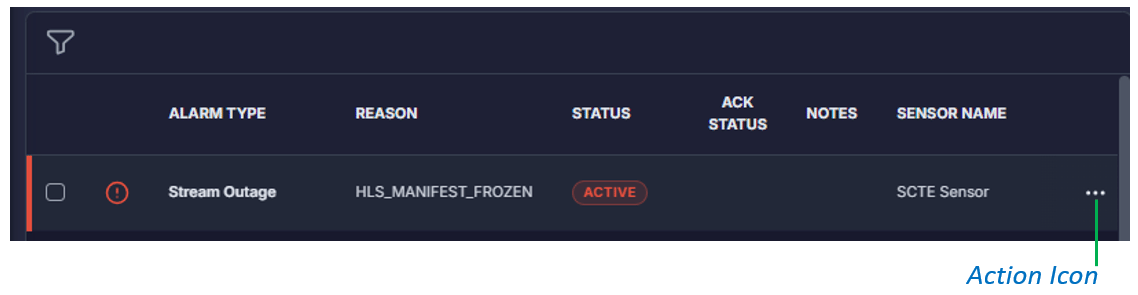
- Action Icon: Acknowledge an alarm, add a note, and view sensor details, Visual Trending, or alarm template configuration.
Sensors View
In the Sensors view, you can create and manage sensors, and you can view Visual Trending and Alarm Log information.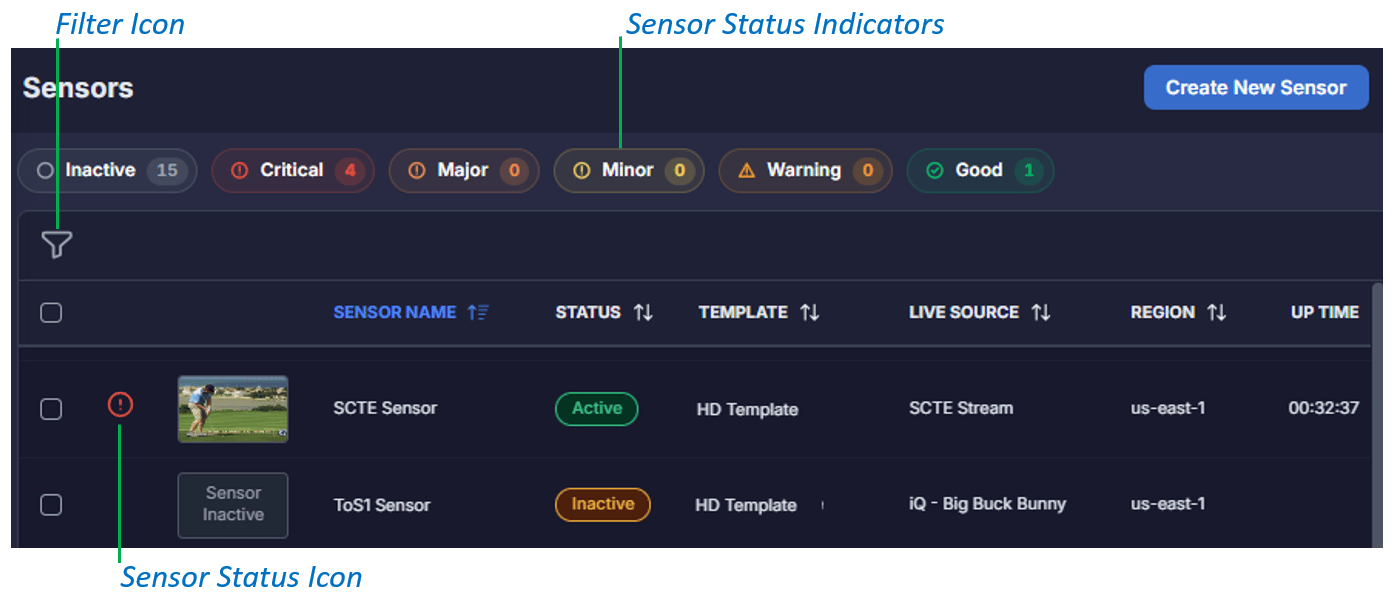
- Filter Icon: Filter the Sensor list by sensor name, live source, template, status, alarm severity, and/or region.
- Sensor Status Indicators: Filter the sensor list by sensor status.
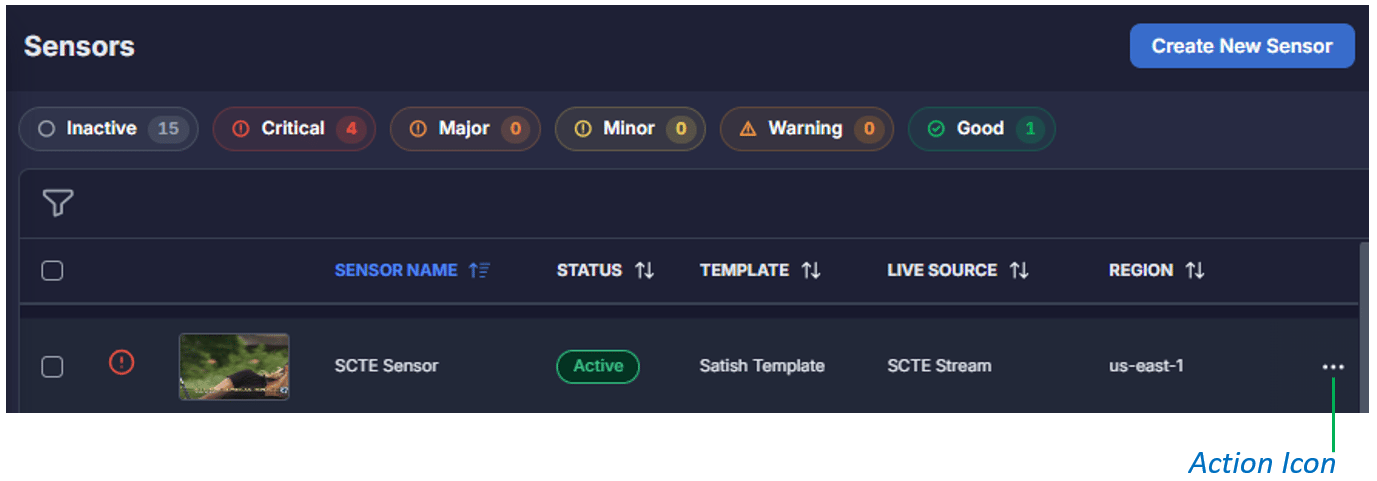
- Action Icon: Preview, edit, or deactivate a sensor, or view Visual Trending and the Alarm Log.
Monitoring Templates View
In the Monitoring Templates view, you can define the categories that sensors will monitor, the alarm notifications that are enabled, and the parameters for generating those alarms.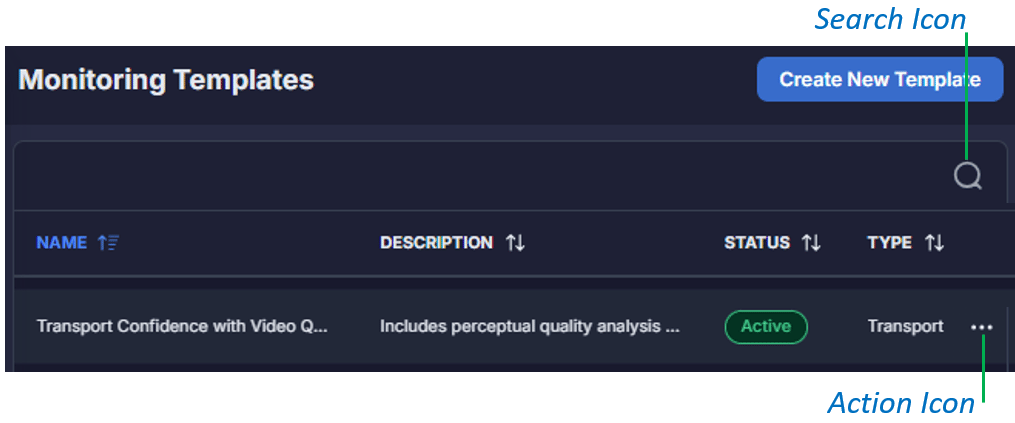
- Search icon: Type some or all of a template name to filter the monitoring template list by name.
- Action icon: View details about a monitoring template, view a template’s configuration settings, and duplicate or delete a template.