
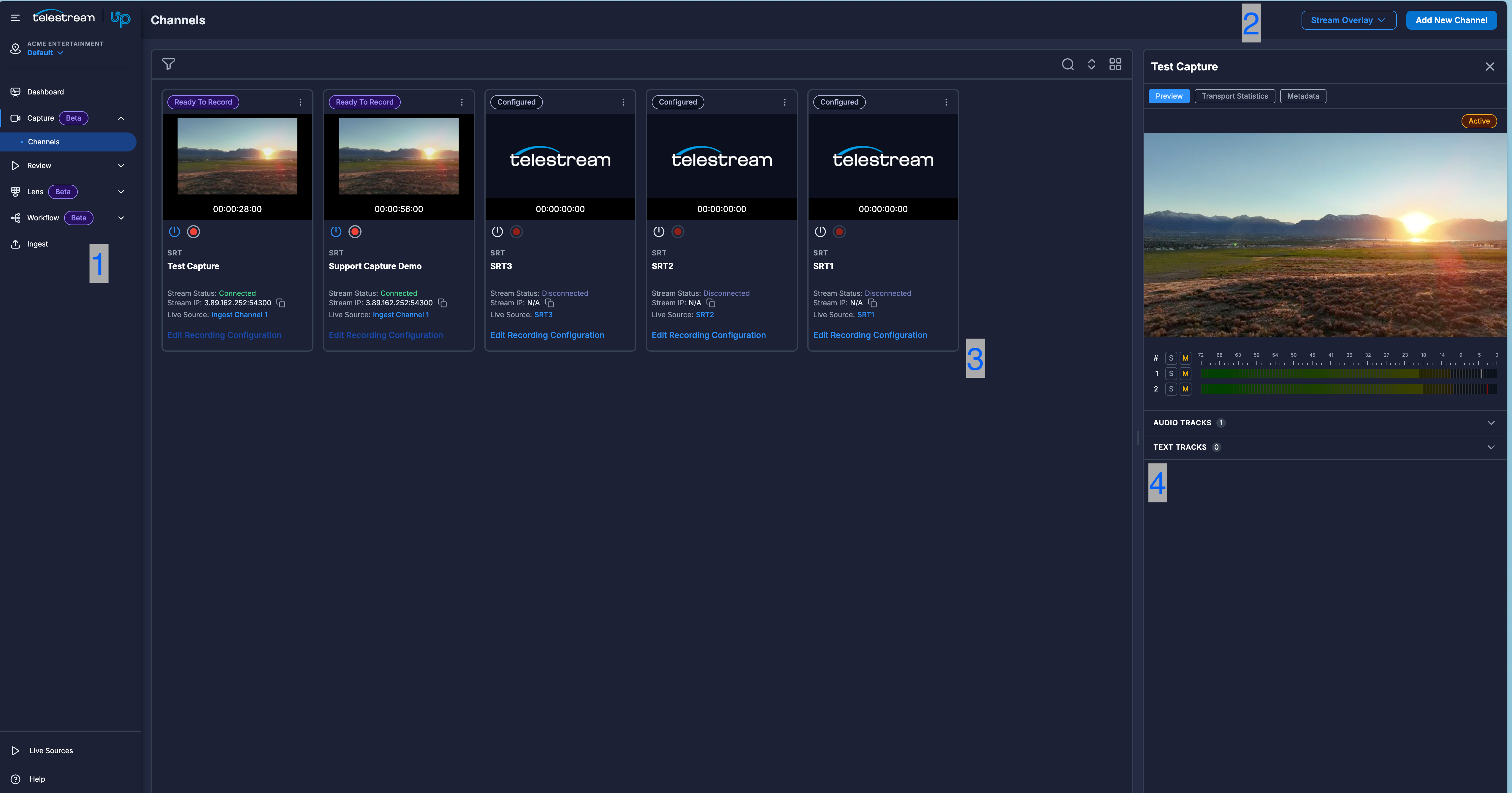
Screen regions
UP navigation sidebar
Shared across UP applications.Channels toolbar
Stream Overlay
Three independent options, each toggled on or off. A checkmark marks the ones that are on.
The overlay applies to every channel card, not just the selected one, and your choice is remembered in the browser between sessions. It is display-only: it does not change what the preview decodes and does not filter which channels appear. A property with no value available shows as a dash.
Channels preview panel
Contains the preview panel toolbar and an array of channel cards — one card per channel. Every channel has a card, in every status, including channels that have not been configured or activated.Preview panel toolbar
Positions are shown in the screenshot callouts above.
Filters
Two filters, each allowing any number of values. Selecting no value in a filter leaves it inactive.Sort options
Your choice is remembered in the browser between sessions. Pinned channels stay at the top of the list regardless of the sort order.
Card display modes
Channel cards
Each card shows the status, identity, and controls for one channel.Status and identity
Channel Status values
The last five statuses all describe an activated channel: Ready To Record means activated with no recording in progress, and the other four describe the recording currently running on it.
Stream Status values
A loss of signal changes the Stream Status to Disconnected. It does not change the Channel Status, and a recording already in progress keeps running through the outage. See Loss of signal.
Thumbnail states
Controls
Recording control by status
If a recording cannot start, UP.Capture shows a message naming the cause — the source is disabled, the source could not be found, the source stream is unavailable, the source is in an outage, or the source could not be reached in time. See Start and stop recording.