> ## Documentation Index
> Fetch the complete documentation index at: https://docs.up.telestream.com/llms.txt
> Use this file to discover all available pages before exploring further.
# UP.Workflow Menus, Panes, and Buttons
You can control most of the functions of UP.Workflow through the UP.Workflow user interface.
# **Manage Workflows View**
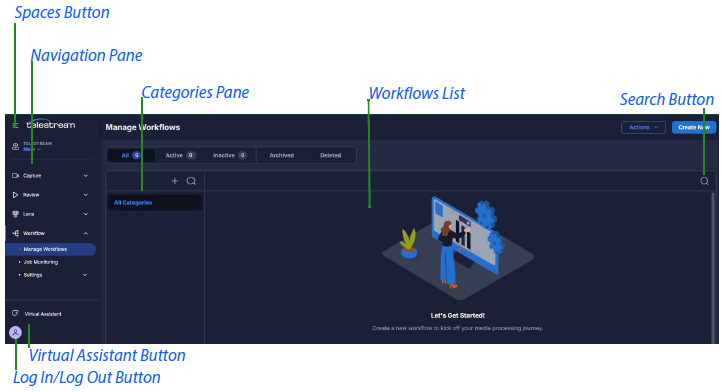
You can create and manage workflows through the Manage Workflows view.
 ## **Spaces Button**
Expands the drop-down menu of available spaces.
## **Actions Button**
Expands the *Actions* drop-down men, displaying the *Import Workflows* option.
### **Import Workflows Option**
Expands the *Import Workflows* pane.
## **Create New Button**
Expands the *Create New Workflow* pane.
## **Search Button**
Opens the Search field.
## **Navigation Pane**
Displays a menu of buttons for opening available UP applications.
### **Log In/Log Out Button**
Opens the Log In/Log Out dialog.
## **Categories Pane**
Displays categories of workflows. You can create categories for groups of related workflows, and name the categories accordingly.
## **Workflows List**
Displays a table of workflows available for the selected Space and category.
When you hover your cursor over a row in the workflows list, a three-dot button appears at the right side of the row. Clicking the three-dot button expands a menu of available actions.
Descriptions of the column headings in the table follow:
### **Name**
A sortable column that displays the names of the workflows. A green dot to the left of a workflow name indicates the workflow is active. When you hover your cursor over a pencil icon in the *Name* field, a pop-up displays the name of the person currently editing the workflow.
### **Jobs**
Displays job-status badges showing the number of jobs in each job status for each workflow. The status badges indicate each of the four statuses, from left to right:
* Waiting
* In progress
* Completed
* Failed
### **Total Jobs**
Displays the total number of jobs using each workflow. This is the total of all the jobs in all four job statuses.
### **Description**
Displays the description of each workflow. You can write your own descriptions.
### **Tags**
Displays the tags for each workflow. You can write your own tags, and use them for finding workflows with the same tags.
### **Last Modified**
A sortable column that displays the date and time the workflows were last modified.
### **Last Modified By**
Displays the names of the last people to edit the workflows.
### **Created**
A sortable column that displays the date and time the workflows were created.
## **All Filter Tab**
Displays all the active and inactive workflows in the selected space and category. A green dot to the left of a workflow name indicates the workflow is active.
## **Active Filter Tab**
Displays active workflows in the selected space and category. A green dot to the left of a workflow name indicates the workflow is active.
## **Inactive Filter Tab**
Displays inactive workflows in the selected space and category.
## **Archived Filter Tab**
Displays archived workflows in the selected space and category.
## **Deleted Filter Tab**
Displays deleted workflows in the selected space and category.
# **Workflow Designer View**
You can create new workflows in the *Workflow Designer* view.
## **Spaces Button**
Expands the drop-down menu of available spaces.
## **Actions Button**
Expands the *Actions* drop-down men, displaying the *Import Workflows* option.
### **Import Workflows Option**
Expands the *Import Workflows* pane.
## **Create New Button**
Expands the *Create New Workflow* pane.
## **Search Button**
Opens the Search field.
## **Navigation Pane**
Displays a menu of buttons for opening available UP applications.
### **Log In/Log Out Button**
Opens the Log In/Log Out dialog.
## **Categories Pane**
Displays categories of workflows. You can create categories for groups of related workflows, and name the categories accordingly.
## **Workflows List**
Displays a table of workflows available for the selected Space and category.
When you hover your cursor over a row in the workflows list, a three-dot button appears at the right side of the row. Clicking the three-dot button expands a menu of available actions.
Descriptions of the column headings in the table follow:
### **Name**
A sortable column that displays the names of the workflows. A green dot to the left of a workflow name indicates the workflow is active. When you hover your cursor over a pencil icon in the *Name* field, a pop-up displays the name of the person currently editing the workflow.
### **Jobs**
Displays job-status badges showing the number of jobs in each job status for each workflow. The status badges indicate each of the four statuses, from left to right:
* Waiting
* In progress
* Completed
* Failed
### **Total Jobs**
Displays the total number of jobs using each workflow. This is the total of all the jobs in all four job statuses.
### **Description**
Displays the description of each workflow. You can write your own descriptions.
### **Tags**
Displays the tags for each workflow. You can write your own tags, and use them for finding workflows with the same tags.
### **Last Modified**
A sortable column that displays the date and time the workflows were last modified.
### **Last Modified By**
Displays the names of the last people to edit the workflows.
### **Created**
A sortable column that displays the date and time the workflows were created.
## **All Filter Tab**
Displays all the active and inactive workflows in the selected space and category. A green dot to the left of a workflow name indicates the workflow is active.
## **Active Filter Tab**
Displays active workflows in the selected space and category. A green dot to the left of a workflow name indicates the workflow is active.
## **Inactive Filter Tab**
Displays inactive workflows in the selected space and category.
## **Archived Filter Tab**
Displays archived workflows in the selected space and category.
## **Deleted Filter Tab**
Displays deleted workflows in the selected space and category.
# **Workflow Designer View**
You can create new workflows in the *Workflow Designer* view.
 ## **Lock/Unlock Icon**
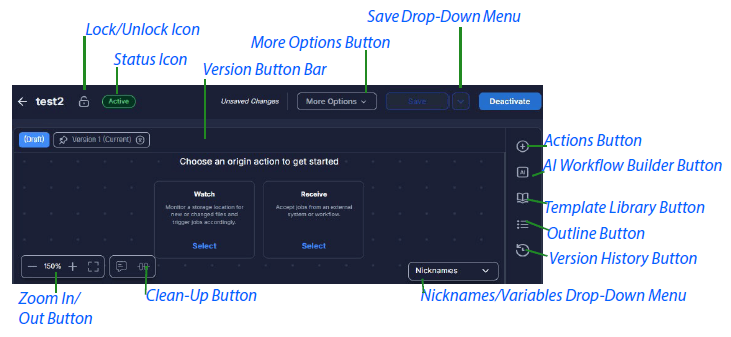
Displays whether the workflow is locked or unlocked.
## **Status Icon**
Displays whether the workflow is in *Active* or *Inactive* status.
## **Version Button Bar**
Displays buttons for versions open on the Workflow Designer.
## **More Options Button**
Opens a drop-down menu listing the following functions:
### **Edit Details**
Opens the Edit Workflow pane.
### **Lock/Unlock**
Locks or unlocks the workflow. Changes the state of the *Lock/Unlock Icon* .
### **Archive/Restore**
Archives or restores the workflow.
### **Move To**
Moves the workflow.
### **Copy To**
Copies the workflow to a desired location.
### **Delete**
Deletes the workflow.
### **Export**
Exports the workflow into a file.
## **Save Drop-Down Menu Button**
Displays the following options:
### **Save**
Copies the workflow to a desired location.
### **Save as New Version**
Deletes the workflow.
### **Discard Changes**
Exports the workflow into a file.
## **Activate/Deactivate Button**
Activates the workflow so that you can submit jobs to it, or deactivates the workflow. Changes the status displayed on the *Status Icon* .
## **Zoom In/Out Button**
Controls the display size of the workflow canvas.
To zoom out, click “-”.
To zoom in, click “+”.
To jump to 100%, double-click the numeral.
To reframe the canvas to display all actions, click the reframe button.
To move the canvas, click on the canvas and hold while moving your mouse.
Alternatively, press Alt or Cmd and use your scroll wheel to zoom in or out.
To select actions, press Shift, click on the canvas and hold to draw a lasso around the actions desired.
As you zoom out, the data displayed on the actions is reduced. As you zoom in, the data displayed on the actions is increased.
## **Clean-Up Button**
Tightens and organizes the display of all actions in the workflow.
## **Nicknames/Variables Drop-Down Menu Button**
Expands the *Nicknames/Variables* drop-down menu. To make media nicknames visible on actions on the canvas, select *Nicknames* . To make variables visible on actions on the canvas, select *Variables* .
## **Actions Button**
Displays the Actions pane which lists available actions you can drag onto the canvas. By default, two starting actions, *Watch* and *Receive* , are placed on the canvas.
To add an action to Favorites, click the star next to the action name.
To search for an action in the *Actions* pane, type a search term into the search field.
## **Template Library Button**
Displays existing templates.
## **Outline Button**
Lists all the actions in the workflow.
## **Version History Button**
Opens the *Version History* pane, which displays the version history of the selected workflow. You can save various iterations of a workflow, re-use them, and edit them through the *Version History* pane.
### **Version History Tabs**
Each version history tab has editable fields for the version-history name and notes, and a button for deleting the version.
## **Lock/Unlock Icon**
Displays whether the workflow is locked or unlocked.
## **Status Icon**
Displays whether the workflow is in *Active* or *Inactive* status.
## **Version Button Bar**
Displays buttons for versions open on the Workflow Designer.
## **More Options Button**
Opens a drop-down menu listing the following functions:
### **Edit Details**
Opens the Edit Workflow pane.
### **Lock/Unlock**
Locks or unlocks the workflow. Changes the state of the *Lock/Unlock Icon* .
### **Archive/Restore**
Archives or restores the workflow.
### **Move To**
Moves the workflow.
### **Copy To**
Copies the workflow to a desired location.
### **Delete**
Deletes the workflow.
### **Export**
Exports the workflow into a file.
## **Save Drop-Down Menu Button**
Displays the following options:
### **Save**
Copies the workflow to a desired location.
### **Save as New Version**
Deletes the workflow.
### **Discard Changes**
Exports the workflow into a file.
## **Activate/Deactivate Button**
Activates the workflow so that you can submit jobs to it, or deactivates the workflow. Changes the status displayed on the *Status Icon* .
## **Zoom In/Out Button**
Controls the display size of the workflow canvas.
To zoom out, click “-”.
To zoom in, click “+”.
To jump to 100%, double-click the numeral.
To reframe the canvas to display all actions, click the reframe button.
To move the canvas, click on the canvas and hold while moving your mouse.
Alternatively, press Alt or Cmd and use your scroll wheel to zoom in or out.
To select actions, press Shift, click on the canvas and hold to draw a lasso around the actions desired.
As you zoom out, the data displayed on the actions is reduced. As you zoom in, the data displayed on the actions is increased.
## **Clean-Up Button**
Tightens and organizes the display of all actions in the workflow.
## **Nicknames/Variables Drop-Down Menu Button**
Expands the *Nicknames/Variables* drop-down menu. To make media nicknames visible on actions on the canvas, select *Nicknames* . To make variables visible on actions on the canvas, select *Variables* .
## **Actions Button**
Displays the Actions pane which lists available actions you can drag onto the canvas. By default, two starting actions, *Watch* and *Receive* , are placed on the canvas.
To add an action to Favorites, click the star next to the action name.
To search for an action in the *Actions* pane, type a search term into the search field.
## **Template Library Button**
Displays existing templates.
## **Outline Button**
Lists all the actions in the workflow.
## **Version History Button**
Opens the *Version History* pane, which displays the version history of the selected workflow. You can save various iterations of a workflow, re-use them, and edit them through the *Version History* pane.
### **Version History Tabs**
Each version history tab has editable fields for the version-history name and notes, and a button for deleting the version.