> ## Documentation Index
> Fetch the complete documentation index at: https://docs.up.telestream.com/llms.txt
> Use this file to discover all available pages before exploring further.
# Live Sources
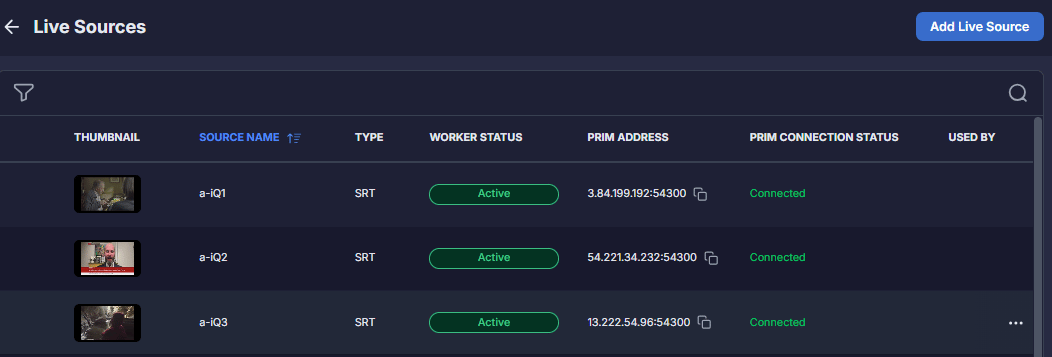
A live source represents an incoming live video contribution feed. Live sources are supported as SRT-wrapped MPEG-2 transport streams that can contain H.264 or HEVC video and AAC or AC3 audio. A live source can be shared and used by multiple services simultaneously. For example, once a live source is established, it can be attached to a Lens sensor for real-time monitoring while simultaneously feeding into the Capture service to be recorded to disk.
To view the Live Sources page, click **Live Sources** on the bottom left.
 # Filter Live Sources
To filter the list of live sources:
1. Click the **Filter icon** and do one of the following:
* To display only live sources that use the Secure Reliable Transport (SRT) protocol: Expand the **Type** section and click **SRT**.
* To filter the list by worker status: Expand the **Worker Status** section and select **Active**, **Inactive**, **Error**, **Pending**, or **Stopping**.
* To filter the list by connection status, expand the **Connection Status** section and select one of the following: **Connected**, **Disconnected**, or **Waiting**.
2. Click **Apply**.
# Search for a Live Source
To search for a live source, click the **Search icon** and type some or all of a source name.
# Sort Live Sources
You can click the **Source Name** heading to sort the source list by source name.
# Copy a Primary Address
To copy a source's primary address, click the Copy icon beside the primary address.
# Filter Live Sources
To filter the list of live sources:
1. Click the **Filter icon** and do one of the following:
* To display only live sources that use the Secure Reliable Transport (SRT) protocol: Expand the **Type** section and click **SRT**.
* To filter the list by worker status: Expand the **Worker Status** section and select **Active**, **Inactive**, **Error**, **Pending**, or **Stopping**.
* To filter the list by connection status, expand the **Connection Status** section and select one of the following: **Connected**, **Disconnected**, or **Waiting**.
2. Click **Apply**.
# Search for a Live Source
To search for a live source, click the **Search icon** and type some or all of a source name.
# Sort Live Sources
You can click the **Source Name** heading to sort the source list by source name.
# Copy a Primary Address
To copy a source's primary address, click the Copy icon beside the primary address.
 # Add a Live Source
To add a Live Source:
1. Click **Add Live Source**.\\
# Add a Live Source
To add a Live Source:
1. Click **Add Live Source**.\\
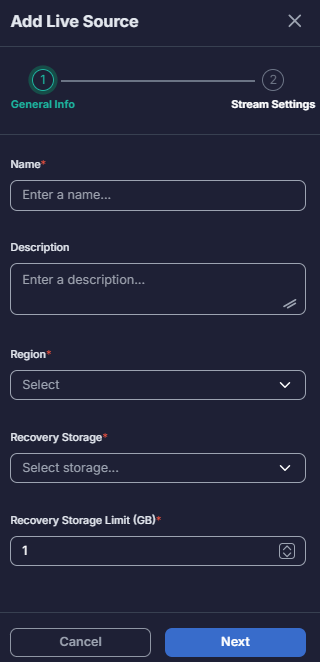 2. In the **Name** box, type a name for the source.
3. (Optional) In the **Description** box, type a description of the source.
4. From the **Region** list, select the region.
5. From the **Recovery Storage** list, select a recovery storage location.
6. In the **Recovery Storage Limit (GB)** box, type or select the maximum amount of data (in gigabytes) that will be backed up for recovery purposes.
7. Click **Next**.
2. In the **Name** box, type a name for the source.
3. (Optional) In the **Description** box, type a description of the source.
4. From the **Region** list, select the region.
5. From the **Recovery Storage** list, select a recovery storage location.
6. In the **Recovery Storage Limit (GB)** box, type or select the maximum amount of data (in gigabytes) that will be backed up for recovery purposes.
7. Click **Next**.
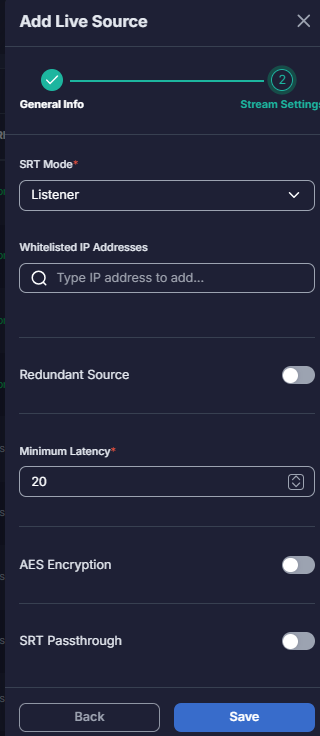 8. From the **SRT Mode** list, select **Listener** or **Caller**.
9. (Optional) In the **Whitelisted IP Addresses** box, type a comma-separated list of IP addresses to be whitelisted.
10. (Optional) To configure this as a redundant source, turn on the **Redundant Source** toggle.
11. In the **Minimum Latency** box, type or select the minimum latency.
12. (Optional) To enable AES Encryption, turn on the **AES Encryption** toggle.
13. (Optional) To enable SRT Passthrough, turn on the turn on the **SRT Passthrough** toggle.
14. Click **Save**.
# View Source Details
To view the details for a live source:
1. Click the **Action icon (…)** to the right of the source and select **View Details**.
2. On the **Preview** tab, UP displays a thumbnail capture of the live source’s stream.\\
8. From the **SRT Mode** list, select **Listener** or **Caller**.
9. (Optional) In the **Whitelisted IP Addresses** box, type a comma-separated list of IP addresses to be whitelisted.
10. (Optional) To configure this as a redundant source, turn on the **Redundant Source** toggle.
11. In the **Minimum Latency** box, type or select the minimum latency.
12. (Optional) To enable AES Encryption, turn on the **AES Encryption** toggle.
13. (Optional) To enable SRT Passthrough, turn on the turn on the **SRT Passthrough** toggle.
14. Click **Save**.
# View Source Details
To view the details for a live source:
1. Click the **Action icon (…)** to the right of the source and select **View Details**.
2. On the **Preview** tab, UP displays a thumbnail capture of the live source’s stream.\\
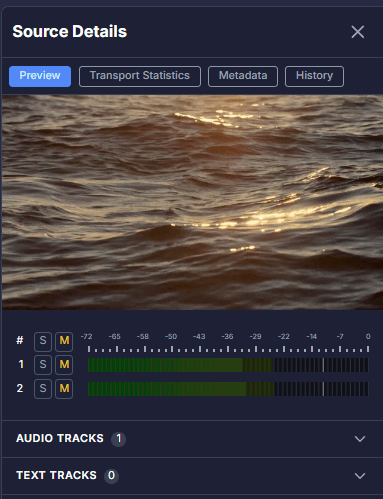
On the audio bar graph, click **S** beside a channel number to listen to only that channel, or click **M** to mute it.
To view information about the audio track, expand the **Audio Track** section.
The **Text Tracks** section lists the number of text tracks on the audio stream.
3. Click the **Transport Statistics** tab to view transport stream statistics.
4. Click the **Metadata** tab to view channel stream information.
5. Click the **History** tab to view the dates and times that the live source was connected and disconnected.
# Modify a Live Source
To modify a live source:
1. Click the **Action icon (…)** to the right of the source and select **View Details**.
2. Modify the source as necessary and click **Save**.
# Activate a Live Source
After you create a live source, it is inactive. To activate it, click the **Action icon (…)** to the right of the source and select **Activate**.
# Deactivate a Live Source
To deactivate a live source, click the **Action icon (…)** to the right of the source and select **Deactivate**.
# Delete a Live Source
To delete a live source:
1. Click the **Action icon (…)** to the right of the source and select **Delete**.
2. Click **Delete** to confirm that you want to delete the source.