> ## Documentation Index
> Fetch the complete documentation index at: https://docs.up.telestream.com/llms.txt
> Use this file to discover all available pages before exploring further.
# UP.Lens Windows, Controls, and Menus
You can control most of the functions of UP.Lens through the UP.Lens user interface.
# Multiviewer View
In the [Multviewer view](/lens/manage-multiviewers), you can create and manage multiviewers.
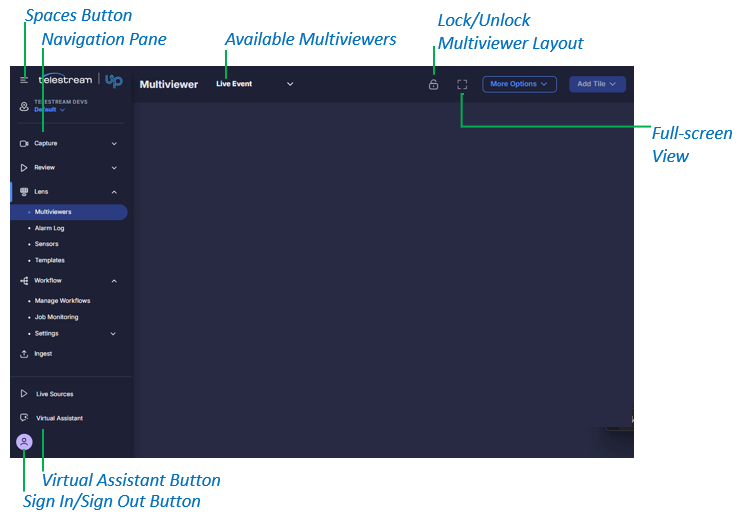 * **Spaces Button:** Expand the list of available spaces.
* **Navigation Pane:** Menu of buttons for opening available UP applications.
* **Available Multiviewers:** A list of each multiviewer that you can access.
* **Lock/Unlock Multiviewer Layout:** Lock or unlock a multiviewer layout.
* **Full-screen View:** View a multiviewer in full-screen mode.
* **Virtual Assistant Button:** Open the Virtual Assistant pane.
* **Log In/Log Out Button:** Log in to UP or log out.
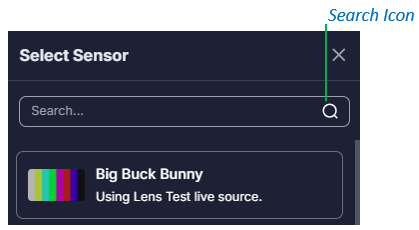
## Search Icon
In several panes, you can click the **Search icon** to filter the displayed list.
* **Spaces Button:** Expand the list of available spaces.
* **Navigation Pane:** Menu of buttons for opening available UP applications.
* **Available Multiviewers:** A list of each multiviewer that you can access.
* **Lock/Unlock Multiviewer Layout:** Lock or unlock a multiviewer layout.
* **Full-screen View:** View a multiviewer in full-screen mode.
* **Virtual Assistant Button:** Open the Virtual Assistant pane.
* **Log In/Log Out Button:** Log in to UP or log out.
## Search Icon
In several panes, you can click the **Search icon** to filter the displayed list.
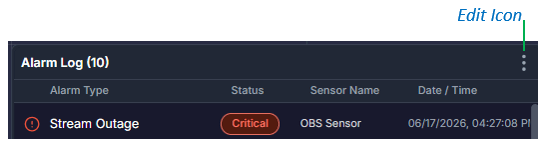
 ## Edit Icon
On several tiles and widgets, you can click the **Edit icon** to configure the tile or widget.
## Edit Icon
On several tiles and widgets, you can click the **Edit icon** to configure the tile or widget.
 ## Save Icon
On the Multviewer screen, you click the **Save icon** to save changes to the multiviewer.
## Save Icon
On the Multviewer screen, you click the **Save icon** to save changes to the multiviewer.
 # Alarm Log View
In the [Alarm Log view](/lens/analyze-diagnostics#alarm-log), you can view a list of all active and recent system alerts across your monitored sources.
# Alarm Log View
In the [Alarm Log view](/lens/analyze-diagnostics#alarm-log), you can view a list of all active and recent system alerts across your monitored sources.
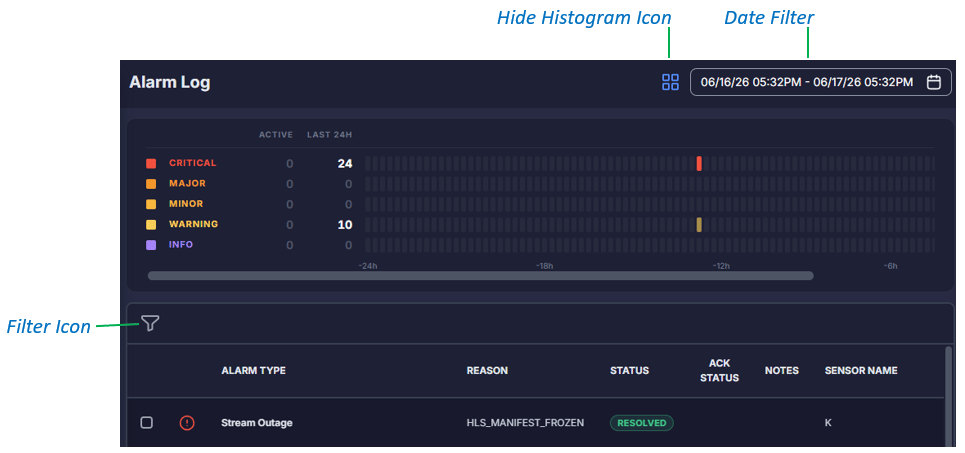 * **Hide Histogram Icon:** Show or hide a histogram of the alarm states and the total number of alarms that are in those states.
* **Date Filter:** Filter the Alarm Log by date.
* **Filter Icon:** Filter the Alarm Log by sensor name, alarm type, alarm severity, alarm status, and/or acknowledgment status.
* **Hide Histogram Icon:** Show or hide a histogram of the alarm states and the total number of alarms that are in those states.
* **Date Filter:** Filter the Alarm Log by date.
* **Filter Icon:** Filter the Alarm Log by sensor name, alarm type, alarm severity, alarm status, and/or acknowledgment status.
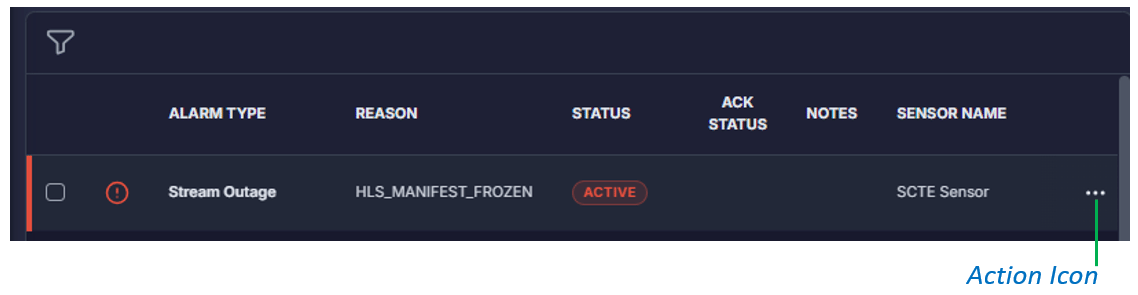 * **Action Icon:** Acknowledge an alarm, add a note, and view sensor details, Visual Trending, or alarm template configuration.
# Sensors View
In the [Sensors view](/lens/get-started-with-up.lens/#sensors), you can create and manage sensors, and you can view Visual Trending and Alarm Log information.
* **Action Icon:** Acknowledge an alarm, add a note, and view sensor details, Visual Trending, or alarm template configuration.
# Sensors View
In the [Sensors view](/lens/get-started-with-up.lens/#sensors), you can create and manage sensors, and you can view Visual Trending and Alarm Log information.
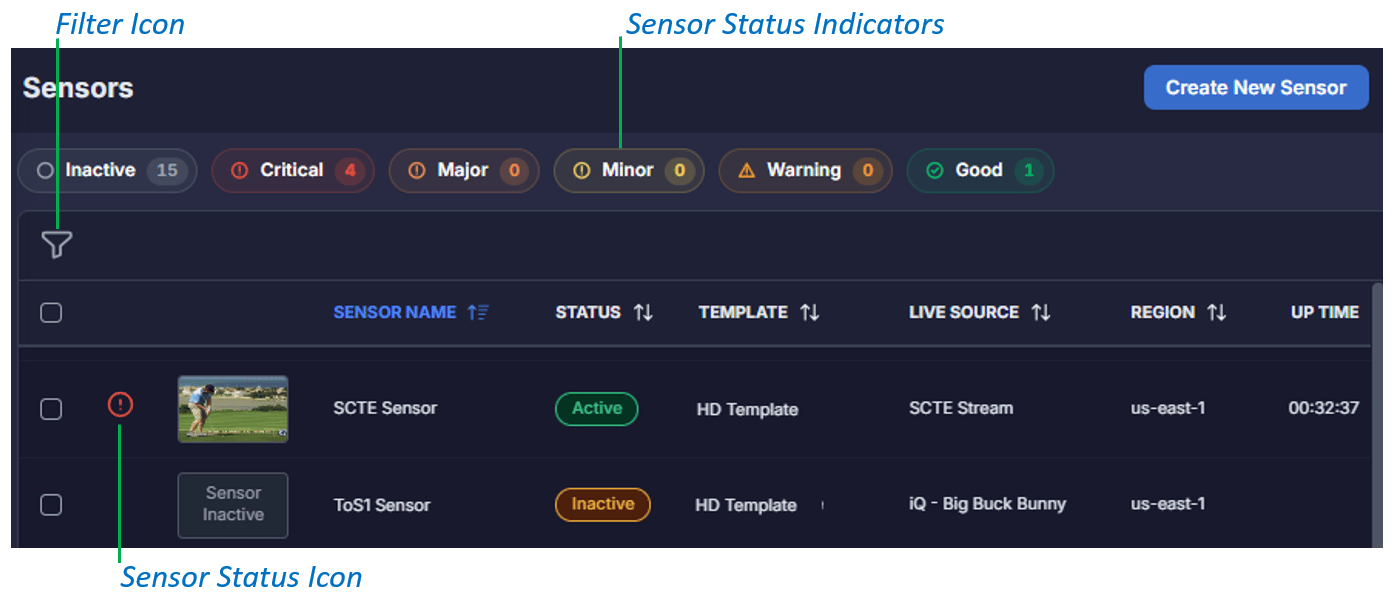 * **Filter Icon:** Filter the Sensor list by sensor name, live source, template, status, alarm severity, and/or region.
* **Sensor Status Indicators:** Filter the sensor list by sensor status.
* **Filter Icon:** Filter the Sensor list by sensor name, live source, template, status, alarm severity, and/or region.
* **Sensor Status Indicators:** Filter the sensor list by sensor status.
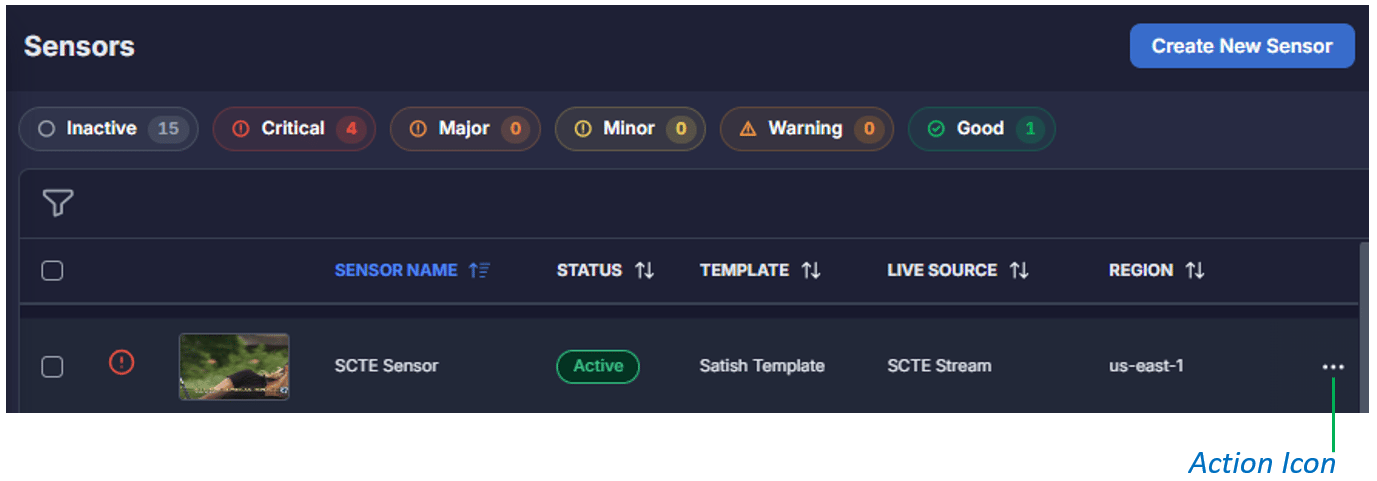 * **Action Icon:** Preview, edit, or deactivate a sensor, or view Visual Trending and the Alarm Log.
# Monitoring Templates View
In the [Monitoring Templates view](/lens/get-started-with-up.lens#monitoring-templates), you can define the categories that sensors will monitor, the alarm notifications that are enabled, and the parameters for generating those alarms.
* **Action Icon:** Preview, edit, or deactivate a sensor, or view Visual Trending and the Alarm Log.
# Monitoring Templates View
In the [Monitoring Templates view](/lens/get-started-with-up.lens#monitoring-templates), you can define the categories that sensors will monitor, the alarm notifications that are enabled, and the parameters for generating those alarms.
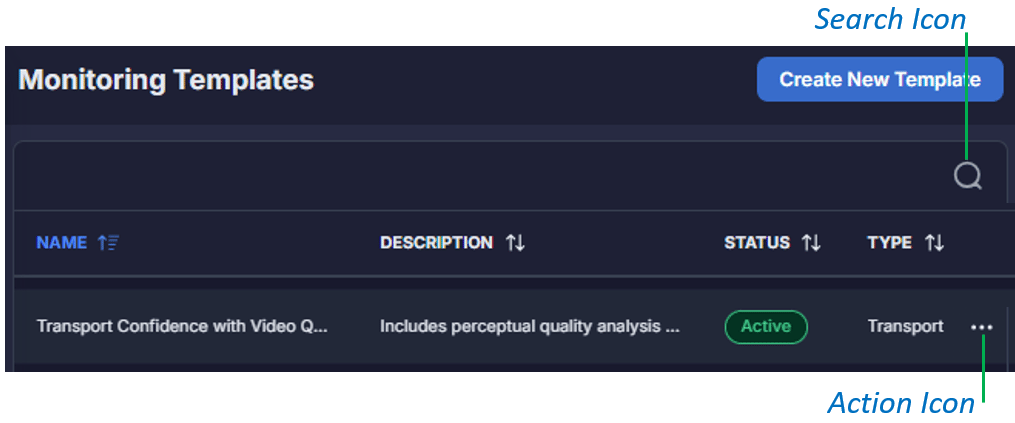 * **Search icon:** Type some or all of a template name to filter the monitoring template list by name.
* **Action icon:** View details about a monitoring template, view a template's configuration settings, and duplicate or delete a template.
* **Search icon:** Type some or all of a template name to filter the monitoring template list by name.
* **Action icon:** View details about a monitoring template, view a template's configuration settings, and duplicate or delete a template.