> ## Documentation Index
> Fetch the complete documentation index at: https://docs.up.telestream.com/llms.txt
> Use this file to discover all available pages before exploring further.
# UP.Capture Windows, Controls, and Menus
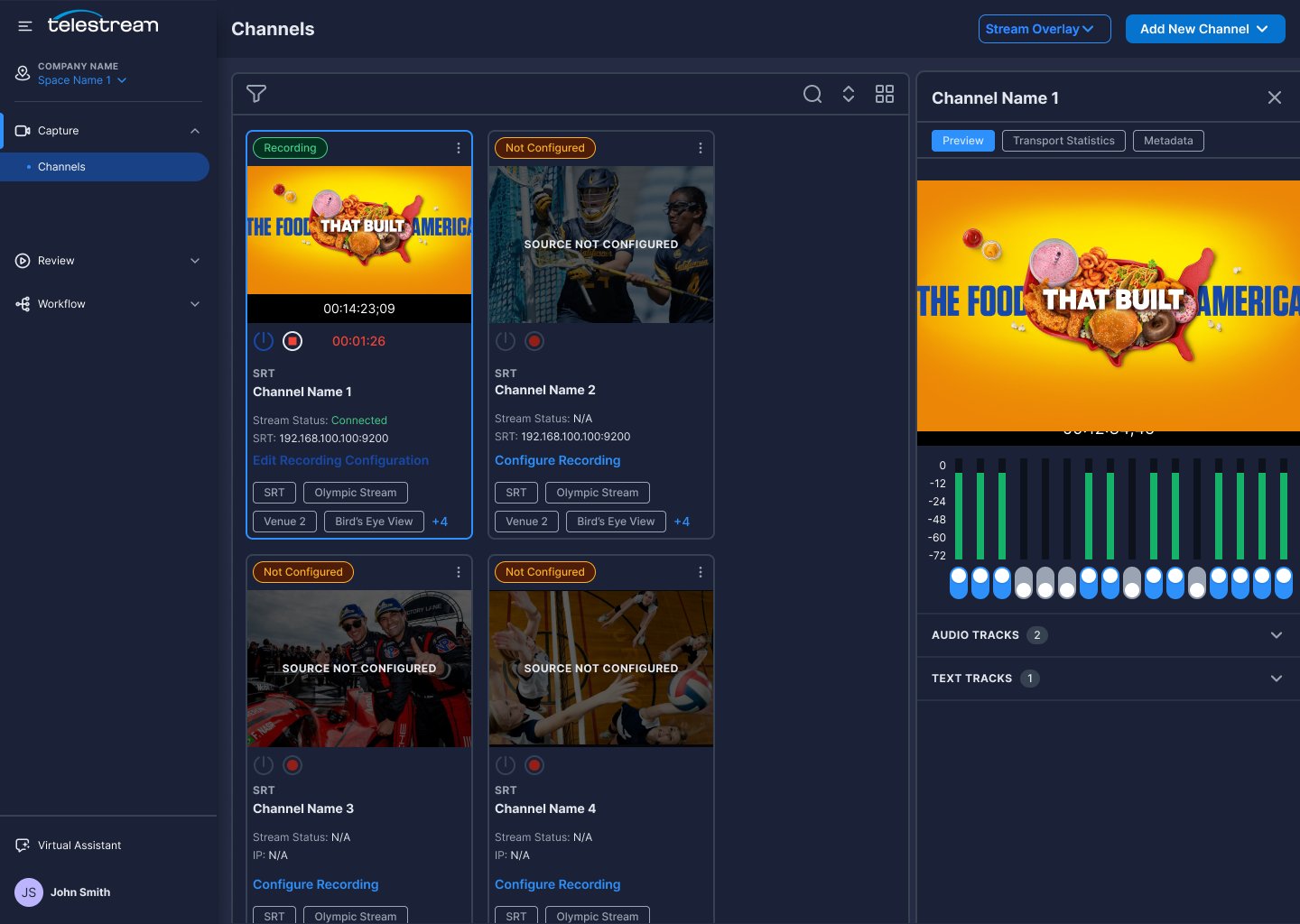 # UP Navigation Sidebar
See [UP Navigation Sidebar in UP Menus, Panes, and Buttons](/platform/UP-Menus).
# Channels Toolbar
The Channels toolbar contains the buttons, *Stream Overlay*, and *Add New Channel*.
* The *Stream Overlay* button opens a drop-down menu for codecs and bitrate.
* The *Add New Channel* button opens a panel for adding a new channel.
# Channels Preview Panel
The Channels preview panel displays the channels preview panel toolbar and an array of channel cards.
## The Channels Preview Panel Toolbar
The Channels Preview Panel Toolbar contains buttons for *Filters*, *Search*, *Sort*, and *Display*.
* The *Filters* button, at the left side of the channels preview panel toolbar, opens and closes the *Filters* panel.
* The *Search* button, towards the right side of the channels preview panel toolbar, opens a search field.
* The *Sort* button, towards the right side of the channels preview panel toolbar, opens a drop-down menu of options for sorting the channel cards
* The *Display* button, towards the right side of the channels preview panel toolbar, opens a drop-down menu allowing you to choose between *Full View* or *Condensed View* display of the channel cards.
## The Channels Preview Panel Channel Cards
The Channels Preview Panel displays one channel card for each active UP.Capture workflow. Each channel card displays Information, settings, and options for a channel that has an active workflow. Each channel card displays the following:
**Blue bars** outlining a channel card indicate the channel has been selected.
**Source Status**—Shows the status of the media source.
**More (three vertical dots)**—opens a menu of options for the channel.
**Name**—Shows the source name.
**Thumbnail**—Displays a still image of the channel input, updating about every 3- 5 seconds, depending on server usage load.
**Timecode**—Displays the current timecode for the video.
**Activate Button**—Activates or deactivates a worker.
**Record/Stop Button**—Click Record to start recording for the channel. If recording confirmation is enabled, UP.Capture displays a confirmation dialog.
**Edit Recording Configuration**—Click to display the *Configurations* view for the channel.
# Channels Display and Information Panel
The Channels display and information panel contains the buttons, *Preview*, *Transport Statistics*, and *Metadata*.
# UP Navigation Sidebar
See [UP Navigation Sidebar in UP Menus, Panes, and Buttons](/platform/UP-Menus).
# Channels Toolbar
The Channels toolbar contains the buttons, *Stream Overlay*, and *Add New Channel*.
* The *Stream Overlay* button opens a drop-down menu for codecs and bitrate.
* The *Add New Channel* button opens a panel for adding a new channel.
# Channels Preview Panel
The Channels preview panel displays the channels preview panel toolbar and an array of channel cards.
## The Channels Preview Panel Toolbar
The Channels Preview Panel Toolbar contains buttons for *Filters*, *Search*, *Sort*, and *Display*.
* The *Filters* button, at the left side of the channels preview panel toolbar, opens and closes the *Filters* panel.
* The *Search* button, towards the right side of the channels preview panel toolbar, opens a search field.
* The *Sort* button, towards the right side of the channels preview panel toolbar, opens a drop-down menu of options for sorting the channel cards
* The *Display* button, towards the right side of the channels preview panel toolbar, opens a drop-down menu allowing you to choose between *Full View* or *Condensed View* display of the channel cards.
## The Channels Preview Panel Channel Cards
The Channels Preview Panel displays one channel card for each active UP.Capture workflow. Each channel card displays Information, settings, and options for a channel that has an active workflow. Each channel card displays the following:
**Blue bars** outlining a channel card indicate the channel has been selected.
**Source Status**—Shows the status of the media source.
**More (three vertical dots)**—opens a menu of options for the channel.
**Name**—Shows the source name.
**Thumbnail**—Displays a still image of the channel input, updating about every 3- 5 seconds, depending on server usage load.
**Timecode**—Displays the current timecode for the video.
**Activate Button**—Activates or deactivates a worker.
**Record/Stop Button**—Click Record to start recording for the channel. If recording confirmation is enabled, UP.Capture displays a confirmation dialog.
**Edit Recording Configuration**—Click to display the *Configurations* view for the channel.
# Channels Display and Information Panel
The Channels display and information panel contains the buttons, *Preview*, *Transport Statistics*, and *Metadata*.